Here are some troubleshooting steps for PlayStation to improve some technical issues or problems downloading assets and art to your game.
Your account and game progress are linked to our servers, as long as you are logged into the PlayStation Network account you used when you first played your Gems of War account then your game progress will not be lost.
Check for System updates
Make sure your PlayStation has the latest PlayStation system update installed by following the steps:
- On the PlayStation home screen select the 'Settings' menu in the top right corner
- Select 'System Software Updates'
- If there is an update available, install it.
Delete Gems of War from Save Game Data
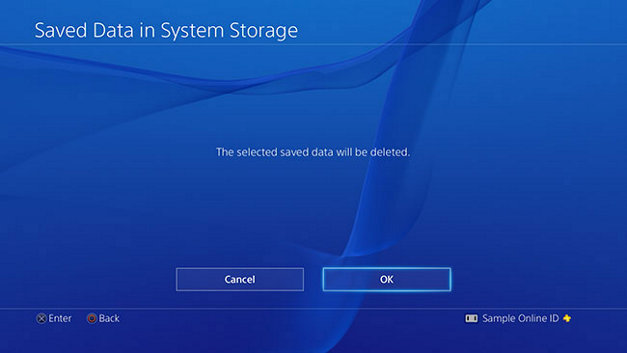
- Ensure you are logged into your PSN Account
- Close Gems of War completely
- Go to Settings > Application Saved Data Management > Delete
- Select Gems of War
- Select All save data for Gems of War
- Select Delete and then select OK to confirm your decision
Image and instructions taken from PS4 Support.
Clearing cache
- Completely turn off your PlayStation, ensuring the power light is switched off.
- With your PS5 powered off, first press and hold the power button. Wait for the first beep, which signals the console is turning on. Continue holding the power button until you hear a second beep, approximately seven seconds later, which indicates that the PS5 has entered Safe Mode.
- In Safe Mode, the wireless functionality of your PS5 controller is disabled. Connect your controller to the PS5 using a USB cable.
- Once your controller is connected, press the PS button to activate it. In the Safe Mode menu, you will find various options. Navigate to the ‘Clear Cache and Rebuild Database’ option using your controller. This step is key for addressing performance issues related to console storage.
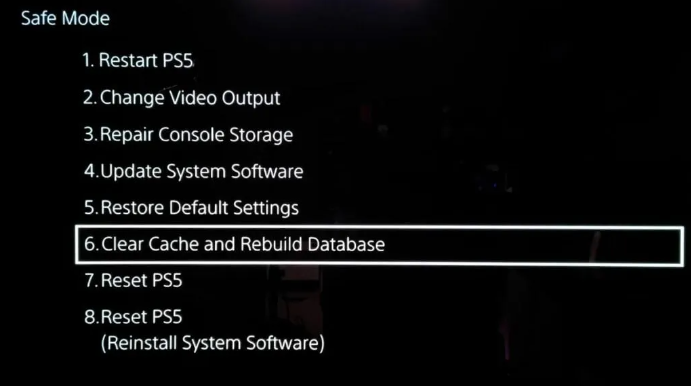
- Within the “Clear Cache and Rebuild Database” menu, select “Clear System Software Cache.” This action specifically targets the temporary files that can slow down your system, without affecting your personal data or default settings.
- After selecting the “Clear System Software Cache” option, confirm your choice by selecting the OK button. Your PS5 will start the process of clearing the cache and may restart once the process is complete
Reinstall Gems of War
This will not delete your save data from our game servers. Your progress will load back up next time you open the game.
- On the PlayStation home screen, highlight Gems of War.
- Press the Options button on your controller
- Select Delete
Once this is completed, go to the PlayStore to redownload Gems of War
If you are still experiencing technical issues with Gems of War after following all of these steps, please contact support