We are currently in the process of investigating reports from PC users of Unity errors, causing Gems of War to crash.
To assist our support and development team pinpoint the cause of this issue, we require some files from your PC along with your report.
Please ensure you include the following when submitting a ticket to our support team!
- When the Unity error happened
- What game mode you were playing?
- What happened right before and leading up to the error?
- How long had you had Gems of War open (this not specific to active gameplay)?
- How much RAM your PC has
- How much space is left on your C: drive?
- A zipped copy of the crash dump from directly afterit most recently has occurred. Again, directly after you experience a Unity error, is when we will need the most recent crash dump.
- As soon as the Unity error occurs, close Gems of War
- Go into your PC files
- Locate the Gems of War game files, [YOUR USER PROFILE NAME]\AppData\Local\Temp\Pipeworks\GemsofWar\Crashes
- Right click on the newest folder, they will have dates listed
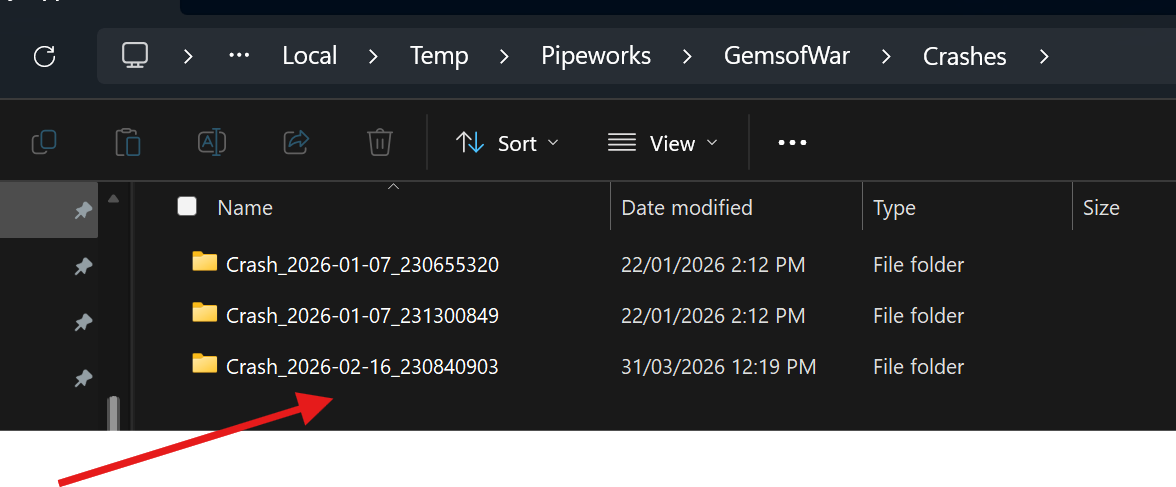
- Select 'Send to' > Compressed (zipped) folder OR Compress to > ZIP File OR 7-Zip > Add to "Crash_[NAME OF CRASH FOLDER].zip". The options available are dependant on your operating system and software you have installed.
- Attached the newly zipped folder to your ticket
If you cannot see these folders, it is because they are often Hidden by default.
To unhide them:
- Type 'File Explorer Options' into your Windows search bar
- Select 'View'
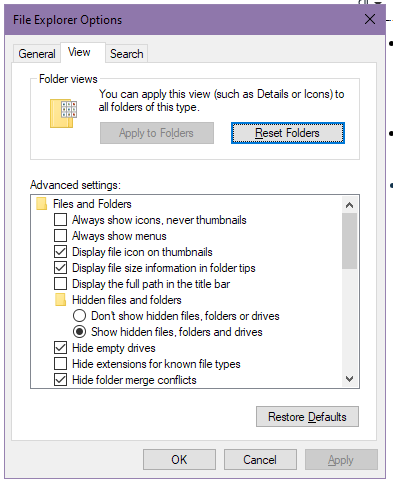
- Toggle 'Hidden files and folders' to Show
- Press 'Apply'
- Press 'Okay'
- Attempt to locate the folders again.